

Associate Professor - UWO Geography
Geography 237a - Geographic Research: Methods and Issues


| HOME | | Research | | Publications | | Education | | 152b | | 237a | | 361b | | 511a | | Marking | | GEOGRAPHY |


Using WS_FTP to Access Orion (30 Megs
on SSCL computer)
Access Your SSCL Account Using WS-FTPle
Open WS-FTPle using Start, Programs, WS-FTP, WS-FTP (blue icon)
HINT: If you want to transfer files from your home computer or elsewhere, WS-FTPle is free for education - go here to download your own copy.To access your account press the Connect button at the botton. Enter the following information:
Profile Name: Yourname or favourite alias - what you type here is not terribly critical, but if you use the same machine in the SDAL throughout the term you can scroll to your profile name to connect a little quicker.
Hostname/Address: orion.ssc.uwo.ca
User ID: yourusername, i.e., the prefix of your email address yourusername@uwo.ca = yourusername
Password: youruserpassword, BE CAREFUL HERE, some of you will have the old password which is your 9-digit student number. Others will use their email password. If you know you have synchronized your passwords, use your email password, otherwise try your student number first.
HINT: Synchronize your password so you don't have to remember your 9 digit student number for logging in. That is, use the same username and password for SSCL (Social Science Computing Lab servers and your email account.
HINT: Further details about FTPing at UWO are here.
Host Type: leave this as Automatic Detect
The rest of the fields can be left blank.
WARNING: Please do NOT check the Save pwd box, unless you delete the profile or uncheck the box before you leave the lab. If you leave it checked others will have access to your account!If you see something appear in the right-hand pane, you are connected. You will likely see a mail folder and a number of files already, like .login.
Now everything in the right-hand pane is your "remote" or "user" space while everything on the left is what is on the local harddisk of the pc you are currently using (see Figure 1).
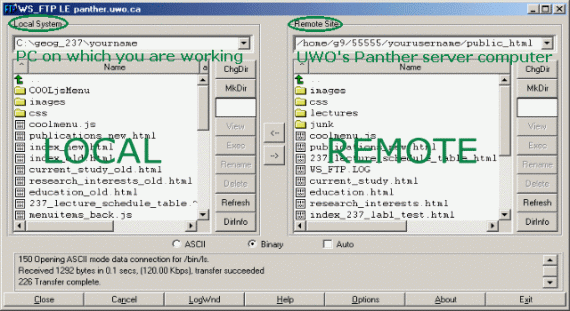
Figure 1: The remote area is where you will keep webpage files (under ../public_html/ in the directory structure) and backups of other important files (these can be "above" ../public_html/ in the directory structure). (The image is from the time when panther could be accessed using WS_FTP, but now it cannot, you are accessing "orion" - formerly called "titan").
Anytime you want to reconnect - e.g., if you get a red error message - simply press the bottom left connect button again, scroll to your Profile Name, enter your Password, and press OK. You will likely have to Close the existing session first before reconnecting.
HINT: notice the Connect and Close button are the same button
HINT: The small green right angled arrow inside each pane is for moving up one directory - double click it to do so.
HINT: To access a different drive scroll to the bottom of the pane - double click the drive letter, eg. c:\ or d:\.Now, you can create directories and move files around on your orion account at the SSCL the way you would on any other computer. Make directories and delete files using the buttons along the right-hand side of each pane.

