

Associate Professor - UWO Geography
Geography 237a - Geographic Research: Methods and Issues


| HOME | | Research | | Publications | | Education | | 152b | | 237a | | 361b | | 511a | | 551b | | Marking | | GEOGRAPHY |


Geographic Research: Methods and Issues
| Lab # | Date | Lab Topic | Reading |
| Lab 1 | Using the computer lab | None | |
| Lab 2 | Critical appraisal | Halvorson (2003) | |
| Lab 3 | Academic writing and referencing | APA Referencing | |
| Lab 4 | Using the library effectively (with Maureen Ryan) | None | |
| NONE | Thanksgiving - No labs. | None | |
| Lab 5 | Using Excel spreadsheets 1 | None | |
| Lab 6 | Using Excel spreadsheets 2 | None | |
| Lab 7 | Survey/questionnaire design | Babbie Ch 9 | |
| Lab 8 | Survey data analysis | None | |
| Lab 9 | Content Analysis | Babbie Ch 11, Ch 13 |
Timetable
Note that the labs are for one hour not two hours as listed on the Registrar's timetable. Ensure you attend the correct hour (table below) of the two listed there.| Lect/Lab | Day | Start Time | End Time | Room | TA |
| Lab 002 | |||||
| Lab 003 | |||||
| Lab 004 | |||||
| Lab 005 |
Disclaimer
Some of the labs in Geography 237 may appear somewhat "cookbook" (e.g., Lab 1) in the sense that if you follow each step closely you have no problem producing something. However there is not much point in creating something, if you do not understand what it is you produced, and more importantly, why you produced it. To make this a learning endeavour, please do your best to keep the "big picture" in mind. Constantly ask yourself, "What is the goal of this lab?" and "How does this help achieve that goal?". For example, Lab 1 helps you create a personal web page, a useful way to promote yourself via the web - you may even already have your own web page. However, the goal is actually to teach you about how the SDAL works, and more importantly, how to move files from a local computer to a remote computer over UWO's secure network.
Need More Help? - TA Companion Site
If you are looking for additional hints, tips, tricks (but not cheats) try Rachel's companion site (even if you aren't in Rachel's lab): http://publish.uwo.ca/~rhirsch2/237/Lab 1 (): Using the Spatial Data Analysis Lab (SDAL)
Objectives
The main objective is to learn how the SDAL functions and how it will be used throughout the term to facilitate labs in Geography 237. Further, the lab shows you how to create and save files on your free UWO server space on the "panther" computer. This will be done by creating, posting, and then printing a webpage (http://publish.uwo.ca/~yourusername/) on the UWO server ("panther" and "publish" are the same place).Preparation
Read through this lab. Ensure you have a valid UWO username and password - e.g., used to access UWO email. Have the username and password handy. The username for the email address yourusername@uwo.ca is "yourusername", the part before the "@" symbol. For details about personal computer accounts see here.Tasks
Activate account using
SSH
Create web page
Access your account using
Secure-FTP (aka Secure File Transfer Client)
Transfer index.html
to your University account on uwo.panther.ca
View your webpage on the web
Create some links
Create directory and
transfer file and whole directory
Reading for next day
-
Activate Account Using SSH Client
It is handy to have a secure place to save your files for access anywhere. Though carrying around a floppy disk or a USB memory key are ways to do this - backups are useful, sometimes critical. One way to store important files for school is by saving to a remote computer - in this case the UWO's "panther" server computer. Every student is provided 20 Megabytes of storage space on this computer. Conveniently, panther is also the place where you can host a website with the http://publish.uwo.ca root (like the address of this webpage). We will focus on the latter feature by creating and publishing a custom index.html page (i.e. step 2).
First we need to set up your main UWO user account to accept file transfer access using WS-FTPle (a file transfer program - you will use this later...). Run SSH in Windows by selecting Start, Programs, SSH Secure Shell, Secure Shell Client (NOT Secure File Transfer Client - which is actually an alternative to WS-FTPle)
Press Enter or the Space bar (notice the message bar at the bottom prompts you to do this to establish a connection). When the pop-up window appears fill it in the same as in Figure 1 below except with your username:

Figure 1: Login information for both SSH Client and Secure File Transfer Client.HINT: "yourusername" is whatever comes before the "@" in your UWO email address
You will be prompted with a "Big Brother" warning screen, press OK, then type in your UWO email password when prompted.
You will then see something like:
TERM = (vt100)Hit return (enter) when you see this. (You may have to hit it twice). You should see something like this:
You have mail.
[7:51am panther]Type in the command: publish
Hit return (enter)
This will activate your account. The first time it runs, it creates a directory called "public_html" and sets all the correct protections. Webpages have to go in the public_html folder. For more details you can read what ITS has to say on the topic here.
Type: logout and enter. This ends the session, and now you can close down the SSH Shell Client program.
It takes a few minutes for your account to actually be activated by the system, so in the meantime you will create something to put in it.
-
To learn how to save and move files around the lab and the university servers, first you need to make something to move around. You will create a web page "index.html" for this purpose - not only is it simply a "file", it is a special kind of file - one for you to go "public" with information about you (more on this later).
Copy and paste the following code into Notepad (Start, Programs, Accessories, Notepad).
HINT: Block the text below then right click as a fast way to get the copy menu item. Do the same thing when you are in Notepad to paste.<!doctype html public "-//w3c//dtd html 4.0 transitional//en">
<html>
<head>
<meta http-equiv="Content-Type" content="text/html; charset=iso-8859-1">
<meta name="Author" content="MYNAME">
<meta name="Generator" content="Mozilla/4.7 [en] (Win95; U) [Netscape]">
<title>MYNAME's Homepage</title>
</head>
<body>
<center><p>Hi, my name is MYNAME
<p>Welcome to my webpage!
<p>INSERT WHATEVER ELSE YOU LIKE
</center>
</body>
Edit it accordingly. That is, personalize it where there are all red CAPS.
Save your file as "index.html" in a folder c:\geog_237\YOURNAME - yes, you will have to create the YOURNAME directory, and if you are the first person from 237 to use this computer, you will have to create the geog_237 folder. If you do not know how to do this, ask your TA.
Save "index.html" to your floppy disk or usb memory key if you have one.
-
Access Your Account Using Secure-FTP (aka Secure File Transfer Client)
Open Secure-FTP using Start, Programs, SSH Secure Shell , Secure File Transfer Client (yellow envelope with blue bubbles)
HINT: If you want to transfer files from your home computer or elsewhere, install it free from the ITS website here.To access your account press the spacebar or enter and enter the same host name and user name information you did for the SSH Client above.
If you see something appear in the right-hand "Remote" pane, you are connected. You will likely see a mail folder and a number of files already, like .login and the all-important public_html folder
REMOTE vs LOCAL - It is important to understand that everything on the left pane is on your local machine - i.e., it is LOCAL, while everything in the right pane is on the panther server, thus it is REMOTE (see Figure 2).

Figure 2: The remote area is where you will keep webpage files (under ../public_html/ in the directory structure) and backups of other important files (these can be anywhere in remote directory structure).To open a directory double-click. To move up a directory click
 over the relevant pane (Remote or Local).
 -
Transfer "index.html" to Your University Account on Panther.
Now that you have your user space open on the Panther server make sure there is a folder called public_html - right pane, remember. If not, create it by pressing the
 button above the pane.
Navigate to where you will put index.html. That is, in the right pane, open public_html by double clicking it. Before we upload your new file from your "local" directory to your "remote" directory, you will notice you already have an index.html file in your public_html directory (right pane). That is because the system automatically generated one for you (back when you issued the "publish" command). We have to disable it by renaming it. Highlight the file, right mouse click and select Rename. Rename it to index_old.html.
Transfer your file. That is, find your index.html file in the left pane (remember, the path at the top of the left pane should read: c:\geog_237\yourname\index.html). Highlight the file. Right mouse click and select Upload. Now you should see two files in your public_html folder: index.html (you just uploaded this) and index_old.html (the one you renamed). Notice that if you right mouse click on a file in the right pane (i.e., remote system), "upload" (to the remote system) changes to "download" (to your local system) to distinguish the direction of file transfer.
HINT: As students in the faculty of Social Science you also have 30 Megabytes of space on the orion.ssc.uwo.ca server. Use WS_FTP to access the orion server NOT secure ftp (but both programs function the same)! Accessing orion is handy for using remote desktop software offered by Social Science - that is, anything you save on your remote desktop (H:\ drive) can be pulled to your local machine through ws_ftp!
HINT: Further details about FTPing at UWO generally are here. -
Now you need to view your page from its new internet location. If you are viewing it in Internet Explorer and the address bar at the top shows c:\geog_237\yourname\index.html - you are only viewing the "local" file. The purpose of this step is to view the "remote" version, the web version.
Open a new copy of Internet Explorer and put http://publish.uwo.ca/~yourusername/ (insert YOUR username of course) in the Address bar, and press Enter. It should look something like the page here.
Now you are "public". All good researchers need to get their research "out there" and this is one way. Sure, you may not have research yet, but why not take advantage of this space to let people know about you and what you do. You might want to post your resume here some day - or contact info that you could point a potential employer to.
Got an error? If you have an error message in Internet Explorer - there may be a number of reasons.
First, check to see that index.html is in the folder public_html - the address window in the right pane should look something like /home/g9/55555/yourusername/public_html when you are in the right location. That is, the folder public_html comes after your username.
Second, you may have unix permission problems. Right click public_html and choose properties - and ensure Owner has read, write and execute checked, User has read checked, and Other has read checked. Do the same for index.html. -
The web is filthy with tutorials for creating web html pages. Use google search engine to find some. For fun, add some of the links you find, to your own site using the following code as a model (cut and paste it into your index.html file, save it and follow the Transfer index.html instructions again):
<br><a href="http://www.google.com" target="_blank">google search engine</a>
Remember when posting links on your site that you must abide by university content rules - this is on their domain remember - let commonsense be your guide.
-
Create a Secure Assignments Folder and Transfer a File (NOT Available through the Web)
In your user space - right pane - create a folder called My_Assignments, with the
button, on the same level as public_html. That is, you will need to use
the
to get you where you need to be in the directory hierarchy.Now transfer a file from your floppy disk - maybe an assignment from another class - into this folder. If you do not have one, make one in Notepad. Because this is not in the public_html folder it is not public. Only you can access this folder using your username and password via Secure-FTP - a great place for secure backups of your files.
Transfer a whole directory. For fun, click on your My_Assignments folder in the right pane (remote directory) and transfer the whole directory over to your local pc (left pane) - i.e. from right to left. Now you have a duplicate - this is a fast way backup a whole directory of files. Just be careful about overwriting files/directories - you want to make sure you are transferring the most recent version (in most cases) of your file - you will be prompted.
MORE FTP SPACE!: As students in the faculty of Social Science you also have 30 Megabytes of space on the orion.ssc.uwo.ca server. The only catch is, you have to use a different ftp client, in this case we do not need and, in fact, cannot use Secure-FTP so we use WS_FTP instead - it is as easy or easier to use than Secure-FTP! Go to the instructions on accessing your FTP account using WS_FTP and log into orion.ssc.uwo.ca to access this extra, secure, storage space.
HINT: Synchronize your password so you don't have to remember your 9 digit student number for logging in to orion. That is, use the same username and password for SSCL (Social Science Computing Lab servers and your email account.
HINT: Further details about FTPing at UWO are here. -
Go get the reading for the critical appraisal lab.
Though the next day is about using the library, now is a good time to go get a copy of the reading for the following lab on critical appraisal. The Halvorson paper is absolutely essential for you to get something out of the critical appraisal lab, and the using the library lab will help you find what you need to complete your assignment 1.
Great, what could be more secure than having your file in two different places? Having it in three places. Why bother? Floppies are notorious for losing data, and the harddrives in the SDAL are public - folders can disappear at anyone's whim without notice.
Just to be safe, leave Notepad running with your index.html file. In later steps you might accidentally lose or overwrite the saved version, so you can simply re-save it from Notepad.
WARNING: Chances are that the local pc on which you are working has an index.html page or two already. That is because most websites have an index.html page and somebody may have created one on your system. Beware you are always working with the c:\geog_237\youname\index.html "locally", as opposed to say c:\index.html.
Lab 2 (): Critical Appraisal of Research
Objectives
The objective of this lab is to hone your critical thinking skills. Even good research needs a critical eye to understand limitations. You will do this by reading an article and filling out the critical appraisal form. For your assignment you will be expected to choose your own article, fill out the form for it, but more importantly, write a short paper critically appraising the article you choose.
Preparation (PRIOR to lab)
-
Read Halvorson (2003). Five copies are available in the map library. The honour system in effect - please read the article or make a copy and promptly return the reading to the folder.
- Fill out the critical appraisal form critical appraisal form for the article.
Tasks
-
Discuss the paper critically as a group. As this is a course about method, focus particular attention on strengths and limitation of the method(s) used. Nevertheless, you will likely find it very difficult to isolate your comments about method from you comments on the purpose of the paper, the logic of the argument, evidence in support of the argument and so on.
-
Discuss the critical appraisal assignment.
Lab 3 (): Academic Writing and Referencing
Preparation (PRIOR to lab)
- Bring a draft of your assignment 1, including the reference list, in digital (.doc or .rtf) format (e.g., ftp "upload" to your "remote" directory from your essay composing computer or bring on: floppy disk, zip disk, or usb memory key)
Objectives
The purpose of this lab is to re-introduce you to proper referencing, grammar, and punctuation. You will also try out Turnitin.com, a plagiarism detection service that the UWO favours for all its essay-based courses. All this may seem a little insulting, given that you are in second year university or higher. However; there is at least three reasons to pursue this lab. One; errors in citation, reference lists, and grammar is experienced by me, and the TAs that works with me, on an ongoing basis. Two; many unknowingly make avoidable errors in their writing. That is, they may not know how to correct it. Three; refreshing your skilz after a long hiatus from writing cannot hurt. If you are confident you will never commit a stilistic error in an essay ever again, then by all means complete only the Turnitin steps and move on. You did catch all the grammatical, spelling and punctuational mistakes in this paragraph; right?
Your TA will lead a discussion sometime during the lab to identify the errors.
Tasks
- Submit Draft Assignment 1 to
Turnitin.com
(Geography Department's policy on plagiarism)
What do you mean you don't have a draft yet!? - Use any draft of any paper you have on disk. If you do not have a document of your own, make a document from existing full text articles (using your skills from last week's lab), simply cut and past sections from articles (not the abstract) into a single Word document. Since this is simply an exercise in using the Turnitin service, the document does not have to be your paper per se.
Turnitin is a service meant to help both students and faculty stop plagiarism. You submit your paper electronically and the service determines how much your paper matches material it has in its database. It is not a style checker. The site shows you the matches with links so you can decide whether matches represent serious violations. As far as style is concerned though, you might want to make sure any quotations it does detect have been references appropriately using the APA style described below! It is NOT required that you hand in your final assignment 1 via Turnitin. For now, I would simply like for us to test the service out and determine how useful and user friendly it is.
Signup at www.turnitin.com using the create a user profile link at the top right, or simply log in if you already have an account. (use whatever email you use most frequently).
Classid Monday Labs= (classid mon= ; password=)
Classid Wednesday Labs= (classid wed = ; password=)Submit to One of the Two Draft "Slots": Follow the wizard and it will take you to the appropriate lab section and the area where you can submit your Critical Appraisal document (draft of assignment 1). Submit (
 ) a draft of your paper (or any document you have handy - if you
do not have one, make one) to the either of the draft assignment
submission links.
You can sometimes overwrite any assignment (draft or final) but
this seems to be a temperamental feature. Turnitin claims
that
re-submissions require 24hrs to generate originality reports, but I
have tested this and discovered the feature is "buggy".
Thus, it is best if you use the non-draft submission link to create
your final originality report. For example, if you submit
draft 1 to "Draft 1" link right now - you should receive an
originality report within about 10 minutes. If you make changes,
and want to check the originality report within 10 minutes then submit
it to the "Draft 2" link. You only have 3 "slots".
) a draft of your paper (or any document you have handy - if you
do not have one, make one) to the either of the draft assignment
submission links.
You can sometimes overwrite any assignment (draft or final) but
this seems to be a temperamental feature. Turnitin claims
that
re-submissions require 24hrs to generate originality reports, but I
have tested this and discovered the feature is "buggy".
Thus, it is best if you use the non-draft submission link to create
your final originality report. For example, if you submit
draft 1 to "Draft 1" link right now - you should receive an
originality report within about 10 minutes. If you make changes,
and want to check the originality report within 10 minutes then submit
it to the "Draft 2" link. You only have 3 "slots".Browse to a draft of your assignment 1 paper. If you sent the file to your ftp account, you may want to go here for a refresher on how to retrieve it. Use an informative title please
Submission Title example = yourname_assignment1_v1 - e.g., huot_assignment1_v1 or huot_lab4-testdocument_v1
Submit your paper.Complete the remaining lab tasks. Leave about 8 minutes at the end to recover your originality report. If your originality report shows up in your class portfolio immediately you can read step 4 below now if you prefer. Otherwise, continue to steps 2 and 3. You will have to sign back in to Turnitin in step 4 so don't forget your personal password (though they do have password recovery using email)!
HINT: See the Geography Department's policy on plagiarism to determine what is a "serious violation".
- See the
APA Referencing Guide
Read this page. This is the preferred referencing style for this class. Variations are allowed, but omitting key information may result in loss of style marks. It is simplest if you follow APA. It is a long list, but pay attention to the types of sources you are most likely to use: e.g., journal articles, books, chapters in books with collections of papers by different authors, websites.
Identify the errors in these reference and citation examples.
- Common grammar problems, punctuation problems and other
problems with student papers
Visit the Student Development Center: Effective Writing page. There are several resources here including the online writing lab. Follow the link to the online writing lab. There, you find several handouts on effective writing which will help you avoid losing both style and content marks in your essays. Many have exercises, so complete as many as you can. Leave about eight minutes for the last task in this lab. Some that should help you guard against common errors in Geography 237 assignment writing are (alphabetical order):- active and passive voice
- conciseness
- comparison and contrast essays (can easily be adapted for your critical appraisal paper)
- essays - general structure
- faulty parallelism
- general evaluation for papers
- rules for numbers in writing
- run on sentences
- sentence fragments
- the comma
- tips for writing essays
- word choice
There are others that may also be helpful. Come back another time to explore the other handouts.
- Go back to
Turnitin.com. and log in again (revised Oct 21/04).
Click the class portfolio tab if you are not already on that page. Browse the the version of the assignment to which you submitted your document. If you do not see your assignment, check the other versions of the assignment just in case.
Click the icon like this to view your originality report. If you see a grey
version of the icon, your report is still pending, look
at some more "Effective Writing" links above in step 3 while
you wait.
to view your originality report. If you see a grey
version of the icon, your report is still pending, look
at some more "Effective Writing" links above in step 3 while
you wait.
blue or green icon = satisfactory, but double check you citation (especially direct quotations).
yellow, orange or red icon = bad, double check your citation and/or reconsider putting direct quotations in your own words (but still cite the author!) - submit revised version to a new slot.
grey icon = you have to wait longer...refresh the page once in a while using your browser's refresh button.Review your results. You will ultimately print the first page (summary) of this report with your final assignment - that is, your final originality report for assignment 1. You do not have printer access in the lab.
Submit final version to different "slot"
HINT: It takes about 10 minutes to generate the first report and, theoretically 24hrs. for each resubmission (read on). Again, the resubmission feature is temperamental, so expect to have only three submission attempts only - that is, two draft slots and the final, main assignment slot.
HINT: use a different title for each submission (this typically does not override the 24 hour rule though).
Help, My Final ORIGINALITY REPORT IS RED! - this is often because your most recent submission is being compared to one of your draft submissions. In such cases you can simply let your TA know this in one of two ways:- greater than 24 hours prior to due date: Email your TA and ask them to resubmit your paper without checking it against your drafts. Once they do this, your originality report should appear blue or green and you can print off the originality report. If you get no response from your TA, use option two as backup.
- less than 24 hours prior to due date: Write a note to your TA on the hard copy of your originality report.
Regardless, you should still check that you have cited direct quotations appropriately. If you see something like the following, you are likely being compared against your own work:
source link match 
student paper database Submitted to University of Western Ontario on 2004-10-20 100%
The link to the paper will tell you to contact the instructor and believe me, if I could allow you to see the offending paper match I would, but I cannot. If the "source" is not the student paper database and the link is not Submitted to University of Western Ontario on... you have probably used too many direct quotes in your paper and you will have to put some of those points into your own words (and cite appropriately) and resubmit your paper to a different slot.
Lab 4 (): Using the library effectively (with Maureen Ryan)
Objectives
This lab dovetails with critical appraisal and academic writing and referencing labs to prepare you for submitting assignment 1. The Geography Librarian, Maureen Ryan, will lead the labs. She will demonstrate how to find material in the library specifically relevant to assignment 1, and more generally, for doing research and writing in geography.
Preparation (PRIOR to lab)
- This lab is held in the SDAL as usual, do NOT go to the library.
- Read assignment 1 and look over what you did in lab 2 again.
- Though the purpose of the lab is to "refresh" your knowledge of finding material in the libraries, you are encouraged to see if you can find what you need for assignment 1 ahead of time. You will likely get more out of the lab if you have some idea of what resources are available out there.
- Links: It is a good idea to check out these links. You will likely need to come back to these when you do your assignment.
- Read over Maureen's lecture notes here.
OFF CAMPUS ACESS TO FULL-TEXT JOURNAL DATABASES!- sscnet - by using the browser on the SSC software server, you avoid javascript problems with EZproxy (below). Login, open IE on the desktop, surf back here (see library links above) or go directly to the library page. May be too slow with dial-up.
- library's two remote access methods - EXProxy does not work properly with javascript, so some databases will NOT work; the Apache solution is probably the most reliable, but most difficult to configure.
Weldon Library - one-stop shopping for all your social science needs (and more!)
Search Databases - find journal articles here - e.g., Geobase
Social Sciences Citation Index - e.g., who has cited the paper by (author, year)?
Western's Full-text Journal List - if you are off campus, go to the
Tasks
- Listen to Maureen Ryan, the Geography Librarian, and ask questions.
Labs 5 and 6 ( & ): Using Excel Spreadsheets
Objectives
The purpose of this lab is to (re)familiarize you with the use of spreadsheets. Though Excel is one of many spreadsheet software packages, it is by far the most popular. You will also be introduced to the National Pollutant Release Inventory (NPRI) as an example of freely available government data that can be managed with a spreadsheet. NPRI is a database of point source pollution in Canada. Since the mid 1990s the Canadian government has been collecting this data from companies, who are required by law to submit data on pollutant releases from their facilities (if they meet some requirements). The data has both temporal and spatial dimensions that make it ideal for geographic study. You will extract data for London to create a histogram of pollution released from point sources (businesses mostly) in 2001. Because this is a rather involved lab, and the assignment is so tightly connected to the lab, we will use two lab sessions - lab 5 and lab 6.
Preparation (PRIOR to lab)
Read over this lab, seriously, you might be pressed for time to complete the core steps otherwise.
Tasks
- Download and open spreadsheet (do this NOW, it is a
large file and may take some time to download)
Open the Excel spreadsheet by downloading the file from either location (right click, Save Target As):
location 1: 02CANADA_xls.exe
location 2: 02CANADA_xls.exeto your c:\Geog237 folder (if the folder does not exist, create it), double click 02CANADA_xls.exe once it is in the folder, extract the contents to the same folder, that is c:\Geog237. You might want to rename the extracted .xls file to something like NPRI_2002_Canada.xls.
NOTE: Some of the figures here are based on 2001 data, so do not be alarmed if your spreadsheet looks different.
- Look around
Look around the file. You should see several tabs at the bottom: Facility, Address, Other_ID, Comments, Sustanc, Dr_Trans, Substran, Streams etc. We will use Substanc mostly. Beware, there is a LOT of information on the NPRI site, so don't browse too long. Some links that will help you out along the way are as follows:
HINT: tab/column definitions - here
HINT: substance list (CAS #) see also also ChemCode tab - here
- Create a new worksheet for London only
There are number of ways to create a new sheet with just data for London ON. First, create a new workbook
 .
The easiest
way to make a London workbook, is probably to copy and paste columns.
.
The easiest
way to make a London workbook, is probably to copy and paste columns.- First, find the columns. The two headers in bold (Substanc,
ChemCode) are worksheets, which are "tabbed" at the bottom of
the workbook. For our purposes we will the following columns
from the following tabs (NOTE: CAS_NUMBER appears in each of the two
sheets, you need BOTH versions):
Substanc: REPORTYEAR, NPRI_ID, CAS_Number, UNITS, RELE_TOTAL, CITY (first few steps)
ChemCode: CAS_NUMBER, CHEM_E (later, step)
HINT: To navigate the worksheet tabs use the at the bottom left
(yes there are "hidden" tabs), the slider in the bottom right is for the current sheet (selected tab) only.
at the bottom left
(yes there are "hidden" tabs), the slider in the bottom right is for the current sheet (selected tab) only.
HINT: Use the Edit/Find feature to find the column titles quickly.
HINT: Use the column width feature to see everything better. Click on this corner cell
to select everything in the spreadsheet. Then click Format, Column, AutoFit Selection. You can select a whole column by clicking the column letter buttons at the top (e.g., the "A" in above figure), likewise for rows by clicking the number buttons on the left (e.g., the "1" in above figure).
- Select, copy and paste the Substanc columns into blank spreadsheet,
rename the tab
Highlight the columns in Substanc as per the list above, right click, and select copy, then paste the columns into your blank workbook. Click on the tab in your new workbook and rename it Sustanc_New.
-
Select, copy and paste the ChemCode columns into blank spreadsheet,
rename the tab
Highlight the columns in ChemCode as per the list above, right click, and select copy, then paste the columns into your blank workbook into a DIFFERENT worksheet (tab). Click on the tab in your new workbook and rename it ChemCode_New.This worksheet gets used in later steps, first we will work on Substanc_new
-
Sort the Substanc_New worksheet - by first highlighting the whole
sheet using select all as shown in the hint above. On the Data menu
select sort ascending
 .
In the top drop down, Sort By, select "City".
.
In the top drop down, Sort By, select "City".
HINT: Like most software if you hold down CTRL you can select and deselect multiple items (e.g., specific cells in a column) while if you hold down SHIFT and drag you select whole blocks of cells.
-
Delete all but the London rows - now that the sheet is sorted by
CITY name, you can delete all rows above and below the London row
entries. This will substantially reduce what you have to work with
in the next steps (for 2002: 177 rows, 176 with data + header row)
- Save your new workbook - with a unique name, something like NPRI_London_2002_total_releases_JBaxter.xls
HINT: Use the freezepane feature to make spreadsheet navigation easier - by making a row(s) and/or column(s) static while you scroll through the rest of the spreadsheet. For example, in the following diagram:

if you select the highlighted cell, and click window, freezepane, while you scroll up and down you will always be able to see the top (header) row, and while you scroll left and right you will always be able to see the REPORT_YEAR, NPRI_ID, and CAS_NUMBER.
- First, find the columns. The two headers in bold (Substanc,
ChemCode) are worksheets, which are "tabbed" at the bottom of
the workbook. For our purposes we will the following columns
from the following tabs (NOTE: CAS_NUMBER appears in each of the two
sheets, you need BOTH versions):
- Convert to common units
You will notice that most of the substances are in tonnes, yet some are in TEQ (toxic equivalents) grams, grams or kilograms. You can do a couple of things, chart the low values (grams and kilograms) on a separate chart, or convert the values and use a logarithmic scale - we will do the latter. Do not worry too much about what TEQ is, suffice it to know these are measured in grams (how many grams in a tonne?). The easiest way to find all the non-tonne values is to sort the spreadsheet, this time by Units. Now use the formula field to divide your RELE_TOTAL values appropriately to convert them to tonnes:
- Make sure your cursor is in the cell beside the one containing the value you want to convert.
- Type = to start the forumla in the formula field.
- Select the cell containing the original value, the one you want to convert - in the example below cell D6. (Of course, you could also eyeball the location and type in D6 manually)
- Now type the rest of the formula manually in the formula field - in the example figure, D6/1000 is the final formula.
- Click the green checkmark to complete the calculation.
- Now you want to move the resulting value in our example into D6 from E6. Select E6, right click, copy, then click D6 and righ click, paste special as values into D6. (As with most software, the edit menu does all of this too).
- Delete the crud that now appears in E6. If you are really new to Excel, have a look at this short video of how you would do this for ONE row, to get a better idea about how all that is done.
- Click on the Units column, right click and hide it since we now know everything is in tonnes. You could also delete it. Regardless, it will be in the way for future steps.

- Repeat to convert grams to tonnes: for rows that will require the same forumula - the gram values - once you have completed one of the formulas, you can simply right click on the result cell, then copy (e.g., E2 in the figure above), then paste in the cells beside additional entries that need to be converted from grams to tonnes (i.e., E3 to E5).
HINT: most formula operators are intuitive, e.g., + - /, but multiplication uses * . Order of operations applies (remember, from highschool - BOMDAS, or perhaps BODMAS?).
Entries concerning the same substance need to be dealt with in
order to create a histogram of total releases for each sustance. Thus,
entries with the same CAS_NUMBER need to be summed. This is a bit
labour intensive, but can be done in a few different ways. First,
another sort is in order.
Sort your spreadsheet by CAS_NUMBER. Now you should
clearly see the duplicates.
Sum the RELE_TOTAL values for duplicate CAS_NUMBERS by using the same
method to covert to tonnes. Note in the figure below that :
indicates "include every cell in between. In this case D2:D4 means sum
all cells from D2 to D5. Other ways of doing this are D2+D3+D4. You
can also use the function key
 which is one of the most powerful tools in Excel. When you use this,
select SUM, and when prompted select the range of cells you want
summed. Try each of these methods.
which is one of the most powerful tools in Excel. When you use this,
select SUM, and when prompted select the range of cells you want
summed. Try each of these methods.

Now, place the result back in one of the original cells. That
is, use the cut, paste special, as
values, procedure and then delete the the other two entries.
Thus, for CAS_NUMBER 100-41-4 you should have one entry, 3.72 tonnes.
Repeat this process on down the list. You could try to use a
clever
IF function to complete this task - well worth the tinkering if
you use spreadsheets a lot - but way beyond the goals of this lab.
This step is required for assignment 2, and you will need the plain English codes to search for their hazard ratings (in some cases). These are issues that arise for the assignment, so if you are impatient, you can simply graph using the CAS codes as labels (i.e., skip to the next step). However, eventually you will need to convert to plain English names for all CAS numbers. The choice is yours for the purposes of the lab.
- The plain English labels for the CAS_NUMBER identifiers are
located in:
ChemCode_NEW: CAS_NUMBER, CHEM_E
This is simply a complete list of NPRI chemicals. We can use CAS_NUMBER in both worksheets to match up plain English labels with the chemical code numbers. Remember too that holding down CTRL then clicking the top column buttons allows you to select non-sequential columns.
At this point, your spreadsheet should look something like below:

Highlight the Chem_E and RELE_TOTAL columns. Click the chart icon (also under the Insert menu)
 .
Choose the horizontal bar graph (histogram)
.
Choose the horizontal bar graph (histogram)
 .
Click next until you reach the screen asking for the chart
location and choose as new sheet and name it something
like histogram_total_releases.
.
Click next until you reach the screen asking for the chart
location and choose as new sheet and name it something
like histogram_total_releases.
Format the histogram - first right-click on the x-axis labels (double clicking should do the same thing, there are "context sensitive menus" all over the histogram - that is where your mouse is when you double click determines what particular menu appears), format axis, and make the scale tab menu look similar the figure below (make sure that the minimum value and "category x-axis crosses at" are the same values). The logarithmic scale is useful for showing on one graph, values that vary widely - just keep in mind when you interpret such a histogram that the scale increments by exponents of 10 - thus, the increments are NOT equal.

Right-click on the y-axis labels, format axis, and make the scale tab menu look like the figure below:

Now choose a number format for the x-axis that will actually fit on the chart. You will need to use scientific notation to do this as per the following figure. The value 1.E-08 is read, "1 to the exponent 8" or "1 with 7 zeros before the decimal (because the 8th spot is taken up by the 1 itself" or 0.00000001. You can see how all those zeros would make the x-axis cluttered.
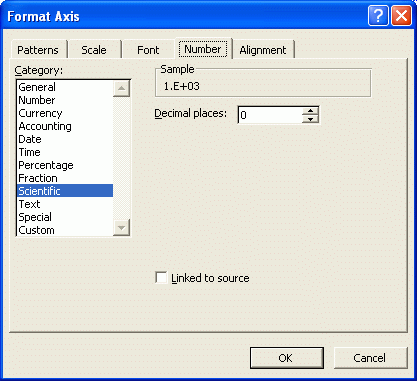
Of course a good way to learn some of the other chart features is to play around with these to see what effect they have on the histogram. Simply use the figures above to get back to where you need to be. Reducing the font size, for example, "buys you space" on an axis.
Edit the title by clicking it, blocking it, and typing something very descriptive: Total NPRI Chemical Releases (tonnes)...etc. You can also move it around with your mouse.
Right click the chart itself and see what options you have. Axis labels might be useful?

Upload your files to your remote directory as per Lab 1 to ensure you have a secure, accessible version of your spreadsheet to use next day (again, keep in mind you will use the same data for Assignment 2).
Lab 7 (): Questionnaire Design
Objectives
The lab dovetails nicely with assignment 3 and is essentially an opportunity to think through your questionnaire design as part of that assignment. This lab highlights common pitfalls of questionnaire design to reinforce what was discussed in lecture. You can also use this lab time to complete lab 5 if you have not already done so.
Preparation (PRIOR to lab)
- Look over Babbie (2003) chapter 9.
- Read over assignment 3 and this lab.
- Look over lecture notes on surveys.
Tasks
- If needed, complete lab 5, particularly if you would like some TA assistance.
- Start work on assignment 3.
- Complete the questionnaire design exercise.
Lab 8 (): Survey Data Analysis
Objectives
The purpose of this lab is to understand how survey data may be organized and analyzed. There is a direct link between this lab and lab 7, as well as assignment 3. That is, this lab uses data from a fictional survey concerning the tension between west nile virus health risk and chemical pesticide health risk. You will use some features of Excel that have not been used in previous labs or assignments (e.g., COUNTIF, and CHITEST functions). Though 237 is not a statistics course, you will actually calculate some statistics for the data to test some hypotheses. Though the lab is somewhat "cookbook", the connection to your other lab and assignment should help to put survey research in a broader analytical context.
Preparation (PRIOR to lab)
- Read this lab.
Tasks
- Open this spreadsheet file and save it to your harddrive (do not save to the default temp directory, you will have a hard time finding it if you ever want to retrieve the file)
- Crash course in chi square. Are women more concerned about
pesticides than men? You will answer questions like this with the
two sheets of data, one with the results of a fictional
phone survey, the other with the questions that were asked of
the fictional group of Londoners. You will deal almost entirely with
the results sheet, but the questions are there for context, if you
want to get a sense of from where the data came. You have to condense
the data into something you can use in a chi square calculation.
chi square is a statistic, used with
nominal and ordinal data, which lets you know if you have a
statistically significant result. In Excel, CHITEST (chi square)
actually calculates for you a probability rather than the statistic
itself, which saves you time. What you want (usually) is a result that
is so rare, that you have to conclude that there is LIKELY a real
difference between groups, in the example above, between men and
women on concern about pesticides. Notice, that the CHITEST
calculation is already done for the question above (see K1 to M11) and
indeed our fictional women ARE more concerned than our fictional men
about pesticides. How do we know? The probability is lower than 0.05.
Why 0.05? You will just have to take it on faith that most social
scientists feel that a result that happens 5% of the time (ours is
0.3% of the time, or 0.000362 * 100), is sufficiently rare to allow us
to say, yes there is LIKELY a real difference.
Thus, you are looking for CHITEST results lower than 0.05 or 5%*
*(Some versions of Excel produce the % version, others the non-% version. Watch for the auto-generated % symbol at the end of your result to know how to interpret yours).
As you know, we can never say for sure, science is typically about probability. CHITEST needs actual and expected counts of responses. If the actual are so far different from the expected you will obtain a rare statistic (i.e., low probability). So, you have to use Excel to do some counting. But, first you need to organize the data for counting. - Collapse the categories. The columns involving pesticide
and West Nile have 4-category Likert-scale response modes. For
example, Concern Pesticide and Concern West Nile have: very concerned,
somewhat concerned, somewhat UNconcerned, and very UNconcerned. Since
there are only 50 respondents (the rows), once you start dividing
these four categories by gender, or age or some other variable, you
start to create dangerously low cell sizes. Fewer categories is
usually best with relatively small sample sizes. Thus, very
concerned and somewhat concerned become concerned and so
on. There are two ways to collapse a whole column.
Method 1 (not recommended): with 50 rows, you could probably quickly just manually type or cut and paste down the pre-made collapsed columns (e.g, CP Collapsed). But this creates unnecessary data entry error risk, and is not a useful technique for larger data sets.
Method 2 (recommended): Adapt the following formula: =IF(C2="somewhat concerned","concerned",IF(C2="very concerned","concerned",IF(C2="somewhat UNconcerned","UNconcerned","UNconcerned"))) for the first cell in the pre-made (empty) collapsed category column. If the result looks right, copy and paste the formula to the rest of the cells in the column. The IF function is very handy for collapsing all sorts of data - including percentage grades to letter grades. Do the same for the other three columns (do not bother collapsing the Age column). Keep in mind that two of those columns have and agree not a concern scale = more "adapting". - Count the responses. Choose two variables that you want to
compare for difference. Maybe you expect that women are also more
likely than men to agree that pesticides pose a health risk. Create a
minitable like the exising one (see K1 to M11) by copying and pasting
those cells into K13 to M23 or whereever else you like (make sure you
do NOT select whole rows if/when you sort though!). Now
remove the numbers, and adapt the labels to suit your new question.
Actual Values: Since we are dealing with men and women again, you will be glad to know the rows are already sorted by Gender. Put the cursor in the Men (Actual) X Concerned cell and press the function button
and find the COUNTIF function. Select the cells in the rows with "m"
for gender (bottom half section of the sheet) in the PC_Collapsed
column and enter "concerned" as the thing to count. Something
like this should result:
=COUNTIF($D26:$D51,"concerned")
HINT: The $ is used to freeze the data source cell location so if you move the cell, the original datum does not change. That is, you override the "automatically increment cell" feature of Excel when you move formulae. You do not need it here, unless of course you start moving your mini analysis tables around. For example, $H$51 says, "no matter where the forumla is in the spreadsheet, always use cell H51 in this forumula".
Do the same for the other 3 cells in the Actual table. Now calculate the expected values. This is a case where you can do the calculation in your head if you like.
Expected Values: To calculate the expected value for concerned by men use this simple forumla:
total men/total number of response categories
The numerator comes from summing the concerned and unconcerned counts, while the denominator is 2, agree, and disagree (the only two response options. That is, you assume that men are equally likely to respond agree or disagree. - Crash course in hypothesis testing. Before we create the
CHITEST value it is worth understanding about formal hypothesis
testing. You want difference, but you hypothesise no
difference. For example:
H0: There is no difference between women and men regarding their concern about pesticides.
HA: Women are more likely than men to be concerned about pesticides.
H0 is called the null hypothesis, and HA is called the alternate hypothesis. Notice that the HA is specific. You cannot simply say, "There is a difference.", for the HA. You need to specify what that difference will be. This is the crux of deductive, nomothetic, hypothesis testing - commiting to an expected result before you calculate it. Presumably, you have some theoretical reason for expecting that women will be more concerned (e.g, in another study, somebody found women were more concerned about chemicals generally). - Calculate the CHITEST probability. Place your cursor in the
cell that will contain the result. Press the function button
and select CHITEST. Now select the Actual and Expected data ranges
from your minitable. The formula should look something like this:
=CHITEST(K3:L4,K9:L10)
If the result contains and exponent "E", then change the number format of the cell to something with about 6 decimal places, unless of course you readily read negative exponents, then just leave it as is. - Interpret the result. We fail to reject the H0 if the probability value of CHITEST is greater than 0.05. We reject the H0 if the value is less than 0.05 (that is, the distribution of responses in your mini table is unlikely to happen by chance, there is a difference between men and women). Do you whole heartedly accept the HA if you do reject the H0? No. Discuss why, with the group. To start the discussion: is your HA accurate based on the "minitable" counts for Actual? See why theory is so important? You may have a theoretical explanation for this rather unexpected result, and in fact this odd result may actually lead to a whole new study about why pesticide concerns may not translate into pesticide health risk concerns.
- Test some other ideas. For example, how do concerns differ by age? Are the people most concerned about pesticides least concerned about West NIle? Hypothesise then test as many as you have time for.
Objectives
The purpose of this lab is to explore both quantitative and qualitative content analysis. It should serve as good pratice for assignment 4. You will work as a group, or perhaps as several groups depending how your TA organizes your session.
Preparation (PRIOR to lab)
- Read Ch 11 and Ch 13 in Babbie if you have not already done so.
- Read assignment 4. This is important as this lab will refer back to the assignment.
- Read the following articles.
childhood obesity article 1
childhood obesity article 2
childhood obesity article 3
childhood obesity article 4
Tasks
- Read the following articles:
childhood obesity article 1
childhood obesity article 2
childhood obesity article 3
childhood obesity article 4
if you have not already done so. The problem your study will address is childhood obesity. - Qualitative Analysis: Analyse these articles using latent coding (also called open coding in the qualitative data analysis lecture). The purpose of this coding is to develop ideas for how you will do more extensive searches of the newspaper databases. Read the articles and make notes on them or on a separate sheet (this can be done electronically in your favourite word processor). What are some of the themes in these articles that you might want to explore further? Physically draft a list of themes with some notes on how each is defined (working conceptual definition).
- Report to class your list of codes and explain each with its conceptual definition. That is, make a list together with your TA (who will type them into Excel or Word for display to the class to aid the thinking process). Any points of disagreement - e.g., conceptual definition? Resolve them as a group as best you can.
- Formulate some postulates about the relationship between concepts. Do this as a group. For example, " There will be more coverage of west nile virus than there will be coverage of the flu". (Defining more will be important in this case.)
- Devise your sampling strategy. You will conduct a quantitative analysis using the Canadian Newstand database. You might actually want to try a few searches on the database before finalizing your strategy. This will give you a sense of what search options and data are available (see next step). For example, what time period seems useful? Will you do a newspaper comparison? Will you only search titles/headlines? Which newspapers will you compare and why? Will you include all finds or only non-editorials? As a group consider an appropriate division of labour if necessary. Is it useful for everyone to do the same searches or should some do certain searches, and the rest do others?
- Open the Canadian Newstand database Open the Western Libraries database page and click the Canadian Newstand link. Do your searches there. The more search options link is useful for selecting specific newspapers, and for other things as well, give it a try.
- Report back to the class what you find. Discuss what next steps would be necessary to round out your content analysis study of childhood obesity.

